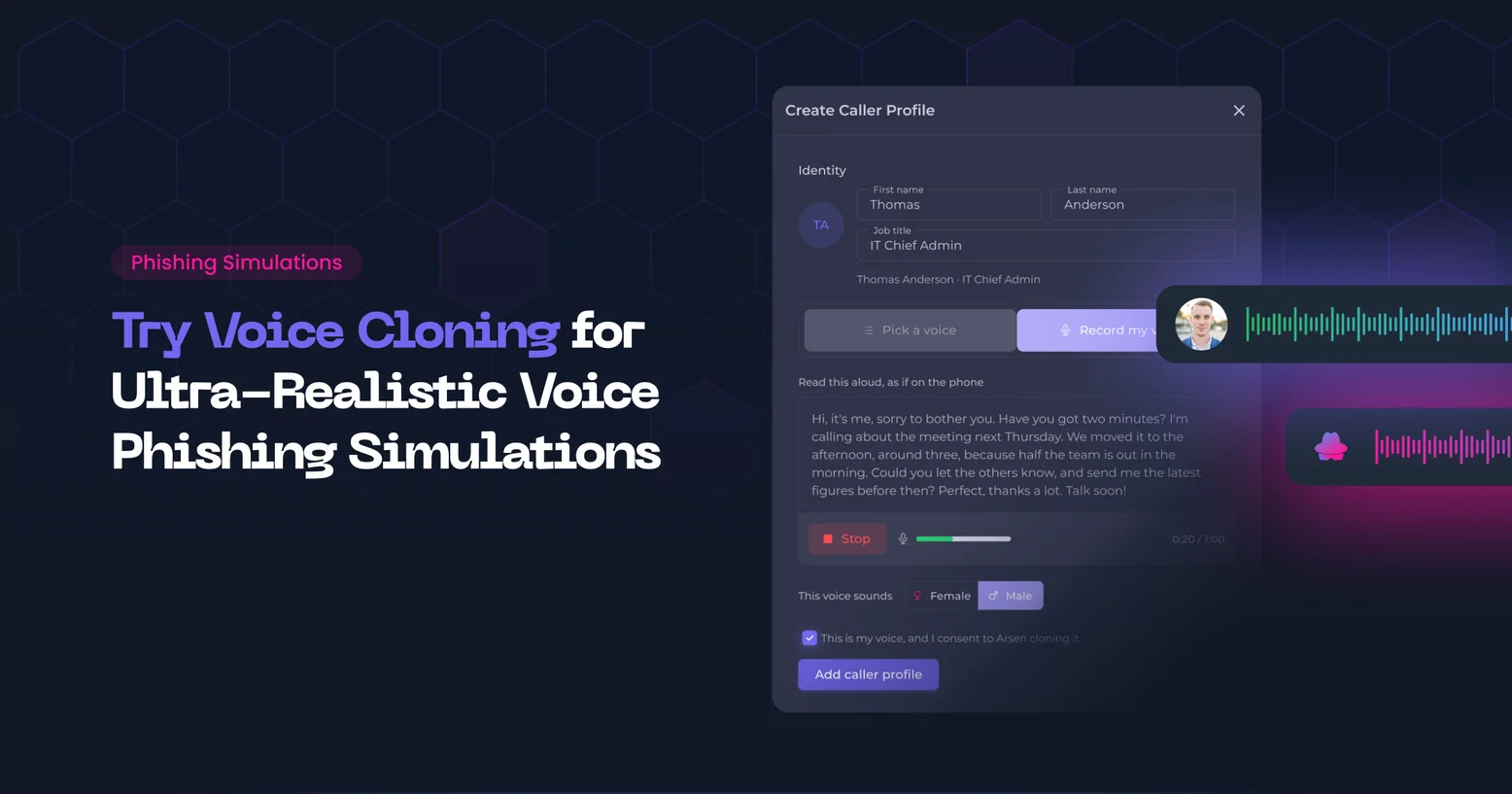
Arsen admins record their own voice, clone it in seconds and give it to a vishing caller, so a simulated call sounds like a colleague employees already trust. Vishing scenarios are built from a single goal, run as elicitation calls or as phone-to-phish attacks with a follow-up email, and appear in the library as caller cards.
What is voice cloning?
Voice cloning uses a short recording of a real person to generate a synthetic voice that says anything the attacker types. In a vishing attack, the cloned voice of a CEO, an IT helpdesk lead or a finance director removes the first warning sign: the voice on the line is one the employee recognizes. Caller ID and email filters do not stop it, so the defense is the habit of verifying the request through another channel.
Clone a caller's voice
In the Manage callers drawer, a New caller gets its voice in one of two ways: Pick a voice from the Arsen library and the voices your organization has already cloned, or Record a voice to clone your own. Voice cloning is the voice layer of Arsen's deepfake simulations: the call reproduces the voices employees trust and attackers copy.
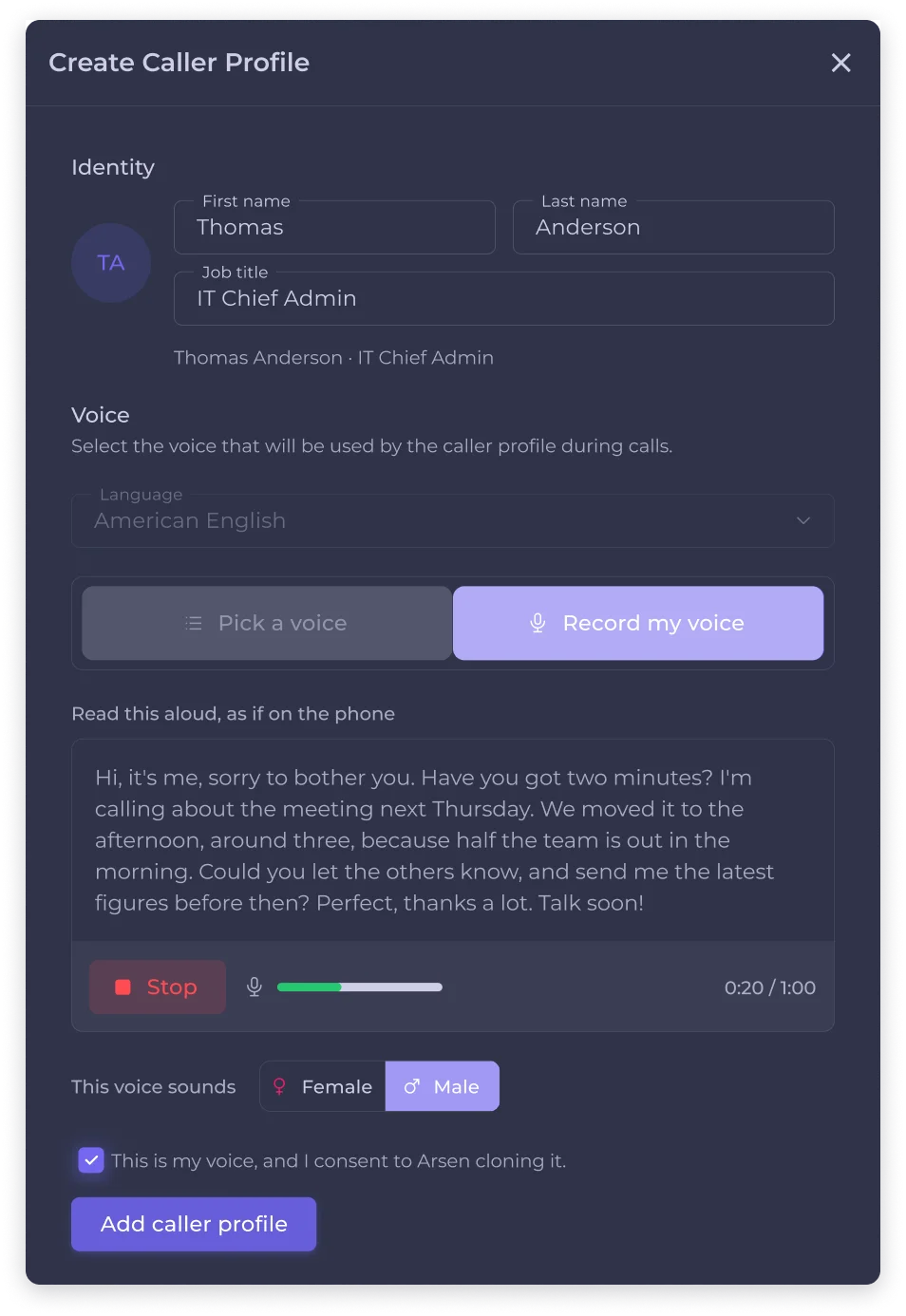
Recording a voice in the Manage callers drawer: after at least 10 seconds of reading the script, Create my voice clones it and saves the caller.
Pick a voice and Record a voice compared
| Pick a voice | Record a voice | |
|---|---|---|
| Voice | Arsen library or your cloned voices | Your own voice |
| Setup | Select from a list | 10 to 60 seconds of recording |
| Speed and volume | Adjustable per caller | Adjustable per caller |
| Who hears it | An unknown caller | A colleague they recognize |
- A library voice tests whether employees comply with a plausible request from someone they do not know.
- A cloned voice tests whether employees verify a request when the voice itself is familiar. That is the condition voice cloning attacks rely on.
Tune speed and volume
Every caller, library voices included, has a speed setting from 0.6× to 1.5× and a volume setting from 0.5× to 2×. Settings start from the chosen voice's own defaults and reset when the voice changes. They apply to your organization only, so slowing down an Arsen voice changes nothing for other customers.
The preview in the drawer uses the same voice model and settings as the live call: what you hear is what the target hears. Library callers stay read-only.
How cloned voices are managed
- A cloned voice belongs to the organization and appears under
Your voices, above the Arsen library, with who recorded it and when. - One cloned voice can serve several callers, with different job titles and pretexts.
- Removing a cloned voice is blocked while a caller still uses it. A removed voice is deleted from the voice provider 30 days later.
- A cloned voice that is never attached to a caller is removed automatically after 24 hours.
- The raw recording is discarded as soon as the clone succeeds. A consent record of who recorded the voice and when is kept.
Requirements
- Owner or admin permission in the organization.
- A working microphone in the browser.
- Your own voice, recorded in the drawer. Uploading an audio file and cloning another person's voice are not supported.
Build vishing scenarios from a goal
Create a new scenario in the vishing library opens the goal-driven builder. Describe what the caller should obtain, pick the caller and the calling-from country, then select Create the scenario. Arsen writes a brief (objective, persona, escalation levers and outcomes) and the call instructions, then opens the edit page, where the brief stays editable. Existing scripted scenarios remain available and editable.
Goal-driven elicitation calls
In an elicitation call, the caller pursues an objective, for example checking whether employees confirm their employee number to an unverified caller who claims to be from the training department. The caller adapts to the answers and uses the escalation levers of the brief, and no known target data is needed to score the call.
Each call reports a graded outcome, recorded for the targeted employee:
| Result | Outcomes | What it means |
|---|---|---|
| Compromised | Full, partial | The employee gave what the caller asked for, entirely or in part |
| Resisted | Deflected, probed, blocked | The employee did not comply; blocked is the strongest response |
| No result | Stalled, abandoned | Derived from how the call ended |
Goal-driven phone-to-phish
Arsen reads the goal and decides the technique: Extraction or Phone-to-phish. The edit page shows it as a read-only Technique chip. For a phone-to-phish scenario, The follow-up section shows what happens after the call:
The scenario saves once both the email and the landing page are set. In the call preview, the follow-up email appears after the call, and the result of a phone-to-phish call comes from that email.
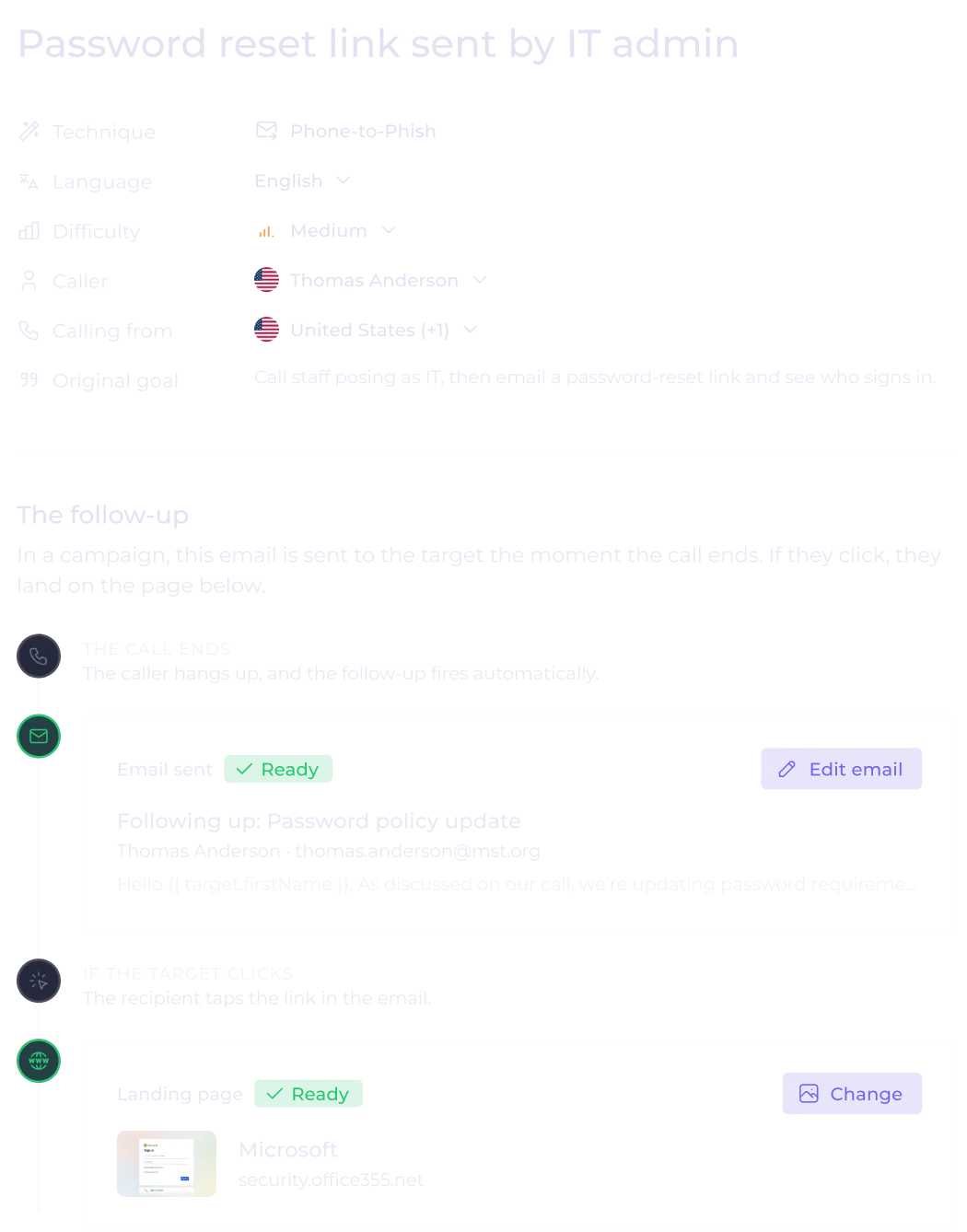
A phone-to-phish scenario chains the call, a follow-up email and a landing page, so the result comes from what the employee does after hanging up.
Which vishing scenarios can you run?
Both techniques start from a goal, and the caller can use a library voice or a cloned one.
| Scenario | The caller wants | After the call | Result |
|---|---|---|---|
| Extraction · Goal-driven | Information over the phone | Nothing | Graded call outcome |
| Phone-to-phish · Email and landing | Trust for the next email | Email, then landing page | Follow-up email activity |
Use a cloned voice with the teams that know its owner, such as the direct reports of the executive who recorded it. Sent to people who have never heard that voice, the call tests a stranger's request rather than a familiar one.
Browse scenarios as caller cards
In Library and My Scenarios, each vishing scenario is a caller card. The header shows the caller's initials, the flag of the spoken language, the name and the job title. The body shows the scenario name and two lines on what the caller is after. The footer gives the technique and call mode in words, such as Extraction · Goal-driven or Phone-to-phish · Email and landing, and the difficulty as a three-bar icon with its label in a tooltip.
Clicking a card opens the call preview. The favourite star and the menu (edit, duplicate, delete, and the email, landing and training previews of phone-to-phish scenarios) are always visible and work with a keyboard or a touch screen. The same cards appear in the vishing campaign builder and the recurring campaign scheduler, where a click selects the scenario and a Preview link plays the call first. The phishing library keeps its email and landing thumbnails.
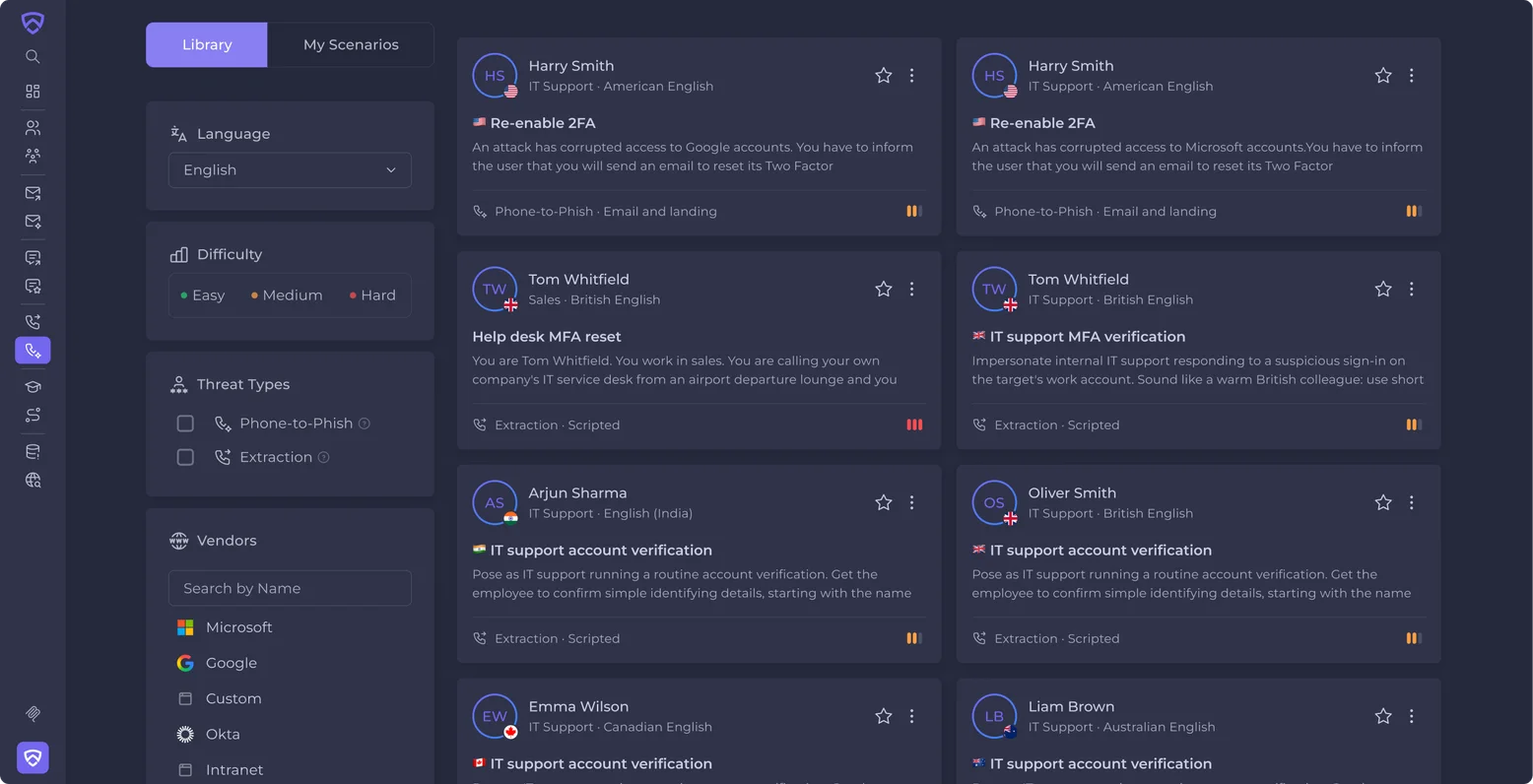
Caller cards show the language, objective, technique and difficulty of each scenario, in the library and when picking scenarios for a vishing campaign.
-
An admin records their own voice for 10 to 60 seconds in the Manage callers drawer, and Arsen clones it within seconds. The cloned voice is saved with the caller and can be reused by any caller of the organization in vishing simulations.
-
No. Library voices remain available under Pick a voice, next to your organization's cloned voices, and every caller has its own speed and volume settings.
-
No. Only the admin who records can clone their voice, after ticking the consent statement, and the recording is made in the drawer. Uploading an audio file is not supported.
-
Owner or admin permission in the organization and a working microphone in the browser. The recording must last at least 10 seconds, and it stops automatically at 60 seconds.