
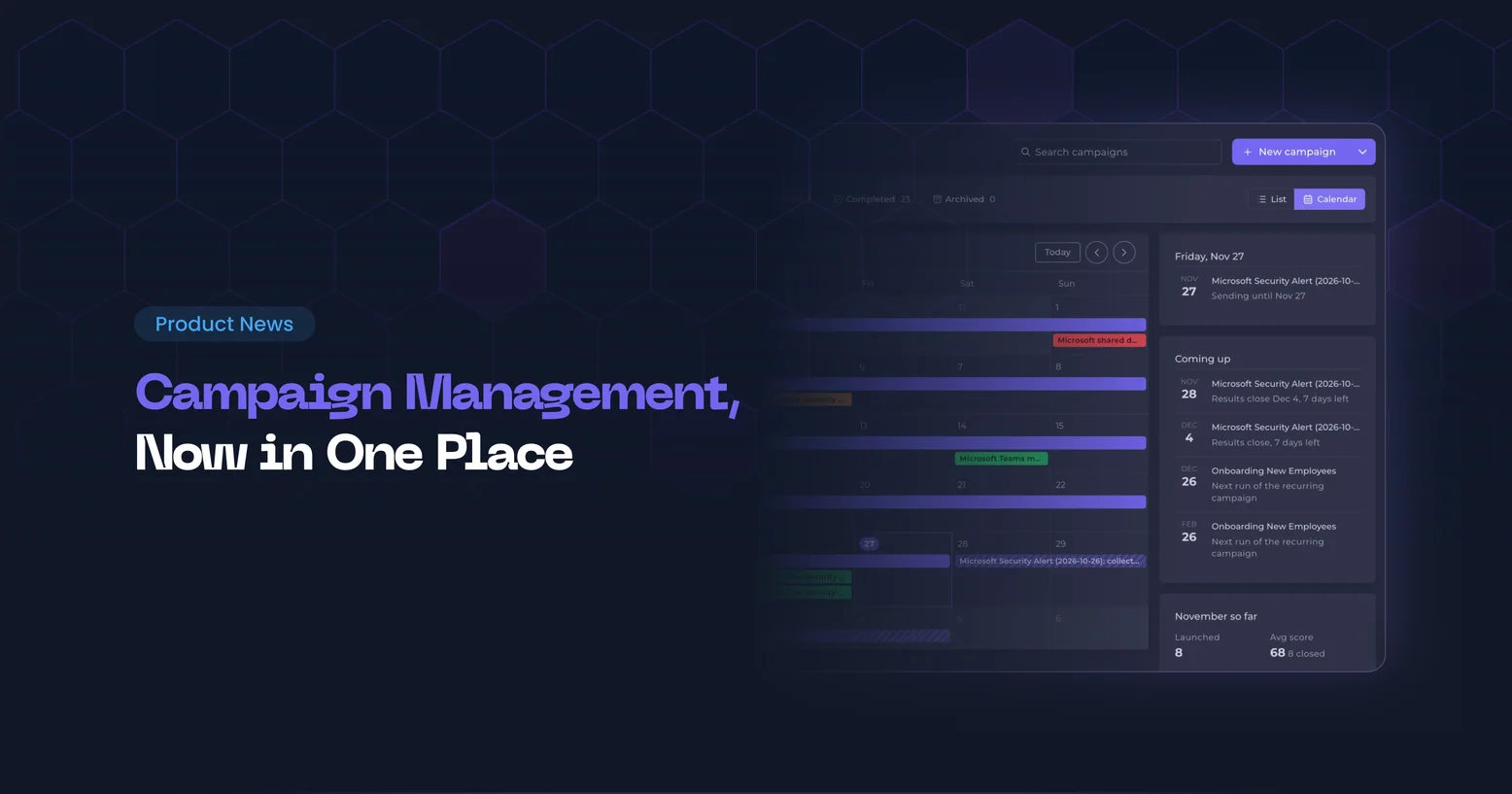
One-time and recurring campaigns sit in the same list in Arsen, with a calendar view beside it. Each recurring campaign has its own page that starts with the next send and shows how clicks and submitted credentials change from one send to the next.
What is a recurring phishing campaign?
A recurring phishing campaign sends simulations to the same targets on a fixed cadence instead of once. Repeating the exercise shows whether employees keep recognizing phishing over time, and turns a single snapshot into a trend the security team can follow send after send.
One list for every campaign
One-time and recurring campaigns are rows in the same table. Tabs filter the list by type: All, One-time and Recurring. Search also finds a recurring campaign by the name of one of its sends.
- Recurring campaigns open in place. Expand a recurring campaign to see its next send and its past sends. Skip a send or undo a skip from the row, and pause, resume or delete the campaign from the row menu. Every action can be undone from the confirmation message.
- Status filters with counts. Filter by
Live,Scheduled,CompletedorArchived, with a count on each filter. The dates of a paused campaign do not count asScheduled, because nothing goes out unless someone resumes it.
The Recurring tab takes the place of the former recurring campaigns tab, and old links redirect to it.
Calendar view
Switch from List to Calendar to see the month: send and collection windows, and upcoming recurring sends. The side panel shows the selected day, what is coming up and the month so far: campaigns launched, average score and campaigns closed.
| What it shows | What you can do | |
|---|---|---|
| List | One-time and recurring campaigns, with a count on each status | Search, filter, expand a recurring campaign, skip, pause, resume or delete |
| Calendar | Send and collection windows, upcoming recurring sends | Select a day, see what is coming up and the month so far |
| Recurring campaign page | Next send, results over time, every past send | Skip sends, edit the schedule, targets and scenarios |
The recurring campaign page
Each recurring campaign has a page built around what happens next and what happened before.
The next send first
The page opens with the next send: its date and time in the campaign's time zone, who it will reach, how it sends, and a Skip this send button. When the campaign is paused, the page says which date will be skipped unless the campaign resumes.
Results over time
A chart shows clicks and submitted credentials across the last 24 sends, with today and any paused period marked. Below it, every send lists its status, risk and results.
A send that did not go out says why, for example Nobody matched the targets, Not enough credits or Skipped by an admin. Long runs of identical skips fold into one row.
Targets, scenarios and schedule
Targets and scenarios are described in plain words, for example "Sends to everyone in 2 groups, about 37 people today." Each scenario shows the brand it imitates and what it asks for. Both are edited in a side panel.
Change the cadence, the first date or the send window from the page. Before you save, the page shows which skipped dates the updated schedule would drop.
Skip or unskip several upcoming sends at once, and load more dates as you need them.
-
One-time and recurring campaigns in the same table, with
All,One-timeandRecurringtabs, status filters with counts, and aCalendarview of the month.
-
It is the
Recurringtab of the campaigns list. Old links redirect there.
-
If every group it targets has been deleted, the campaign pauses itself and says so on its page. Choose new targets and it resumes.
-
No. The campaigns list and the recurring campaign page are available for every organization.