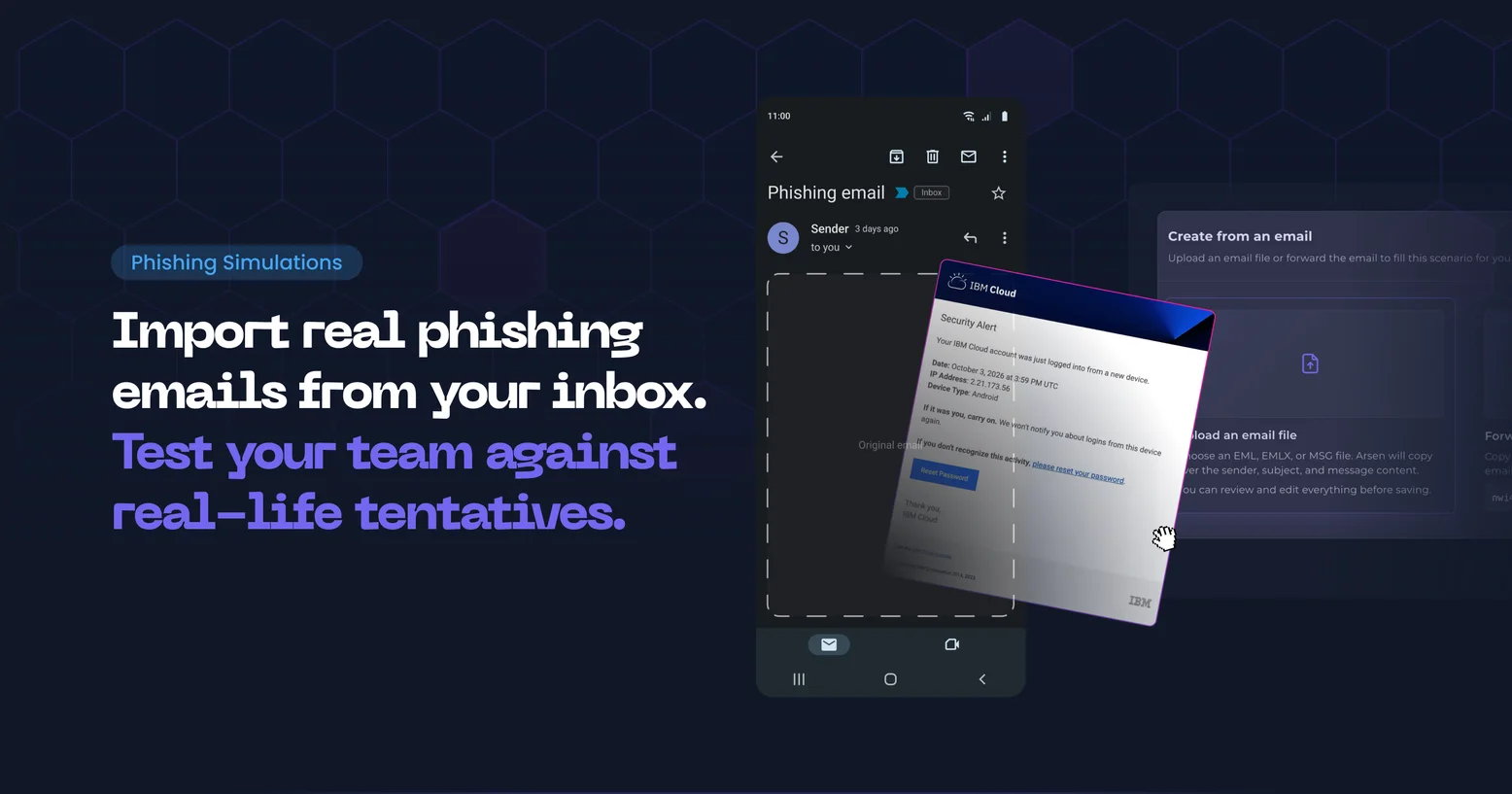
Arsen converts a real-world email into the email of a custom phishing scenario. Upload an email file or forward the message, and Arsen creates a draft with the subject and body of the original, ready to review and edit. The result is a scenario built from the emails your organization actually receives, without writing HTML.
What is phishing?
Phishing is a social engineering technique in which an attacker sends a message that imitates a trusted sender, such as a vendor, a colleague or an online service, to get the recipient to click a link, open an attachment or hand over credentials. The message borrows the layout, tone and context of a legitimate email, so it blends into the normal flow of a mailbox. Because it relies on a decision made by the recipient, technical email controls do not stop every attempt, which makes employee behavior part of the defense.
How it works
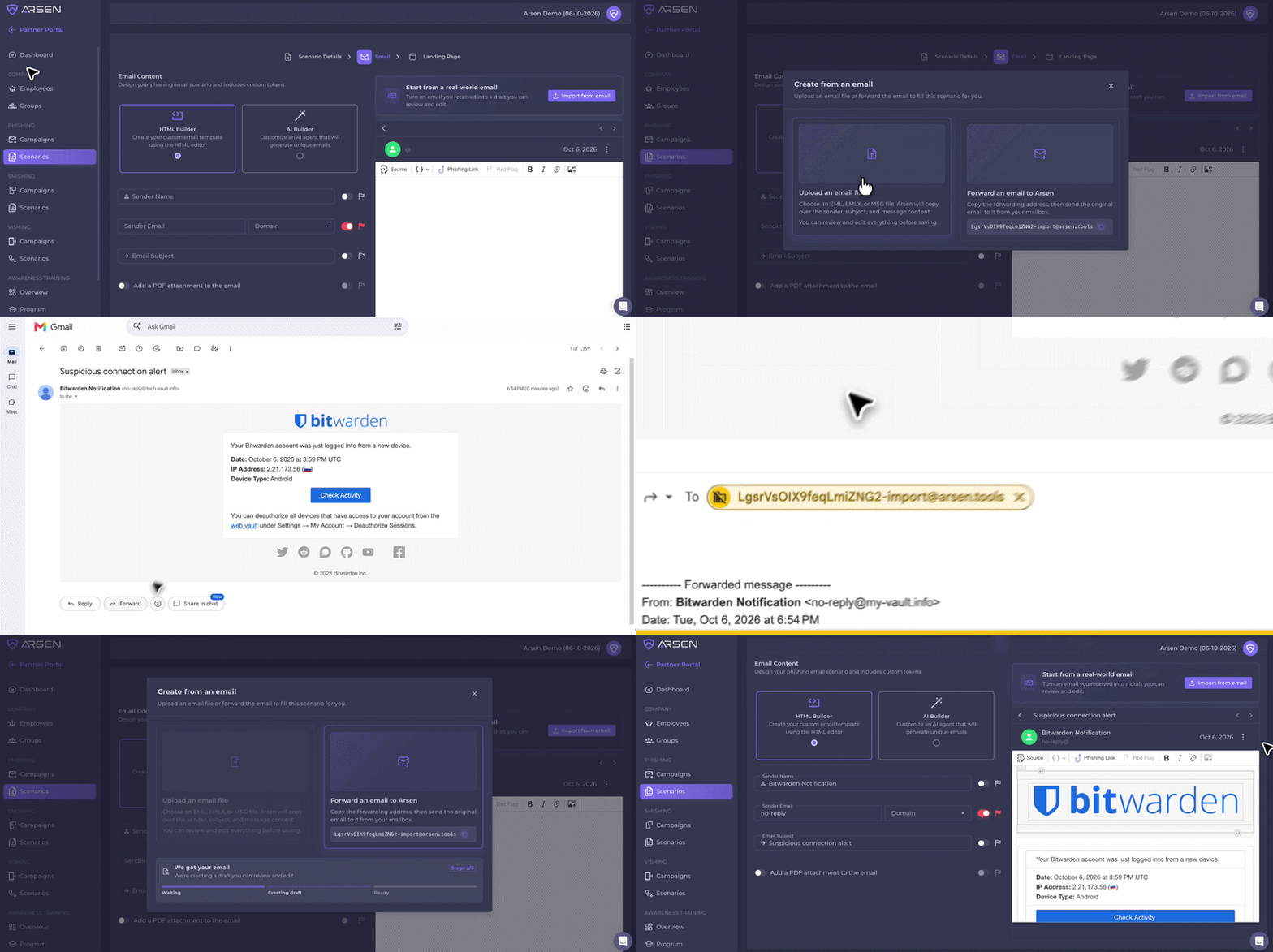
When creating a custom phishing scenario, go to the Email step. Above the email editor, the block Start from a real-world email carries the button Import from email. It opens the window Create from an email, with two options: Upload an email file and Forward an email to Arsen.
Arsen then converts the imported email into a phishing simulation email. During the conversion:
- The subject and the body are taken from the original email.
- Links that are candidates for the simulation are replaced by the phishing URL token. One link or several can be replaced.
- The recipient's first name and last name, when found in the email, are replaced by personalization tokens.
- Links judged not relevant for the simulation, in secondary areas of the email, are replaced by
#.
The draft opens in the scenario email editor, where tokens appear as labels and everything stays editable. The import does not set the sender domain: select it in the Domain list, as a separate step of building the scenario. The email editor remains available below the import block.
The conversion relies on a language model and works on a best-effort basis. Name detection does not trigger on every email. Review the draft before using it in a campaign.
Upload and forward compared
| Upload an email file | Forward an email to Arsen | |
|---|---|---|
| What you provide | An EML, EMLX or MSG file | The original email, forwarded from your mailbox |
| What you do | Choose the file in the import window | Copy the forwarding address, then send the original email to it |
| Timing | Does not depend on email delivery | Depends on email delivery, so it can take longer than an upload |
- Uploading fits an email already saved as a file. Most email clients can download a message as a file: in Gmail, open the email, open the three-dot menu and select
Download message. Outlook can also save a message as a file, and the place of the option depends on the client. - Forwarding fits an email that is still in the mailbox. Anyone can forward an email.
With the forward option, the address is unique to the scenario being created and stays the same as long as you stay on the page. Copy forwarding address copies it, then the window waits for the email and shows three stages with a progress bar: Waiting, Creating draft, Ready. Keep the window open while it waits. Forward headers are removed automatically. Until the forwarded email arrives, you can still switch to an upload. Once it is received, the import block is locked.
Processing time grows with the size of the email. Emails with many elements, marketing emails for example, take longer to convert.
Requirements
- No specific plan, role or integration is needed.
- A custom phishing scenario, at the
Emailstep. - An email as an EML, EMLX or MSG file, or a mailbox to forward it from.
Which emails can you turn into a scenario?
Security teams already hold real emails that can serve as the starting point of a scenario:
- Phishing emails received by the organization.
- Emails reported by employees.
- Vendor notifications.
Scenarios gain variety this way, and they start from the mailbox rather than from an HTML editor.
-
Phishing email import creates the email of a custom phishing scenario from an existing real-world email. Arsen takes the subject and body of the original, replaces the links that are candidates for the simulation with the phishing URL token and, when they are found, the recipient's first name and last name with personalization tokens. The result opens as a draft in the scenario email editor.
-
No. The import creates a draft that opens in the scenario email editor, where tokens appear as labels and everything stays editable. The sender domain is selected separately, in the Domain list.
-
No. The conversion relies on a language model and works on a best-effort basis. Name detection does not trigger on every email, and links in secondary areas of the email are replaced by #. Review and edit the draft before saving the scenario.
-
Nothing specific: no plan, role or integration is required. You need the email itself, either as an EML, EMLX or MSG file, or in a mailbox from which you can forward it to the address Arsen generates for the scenario.