
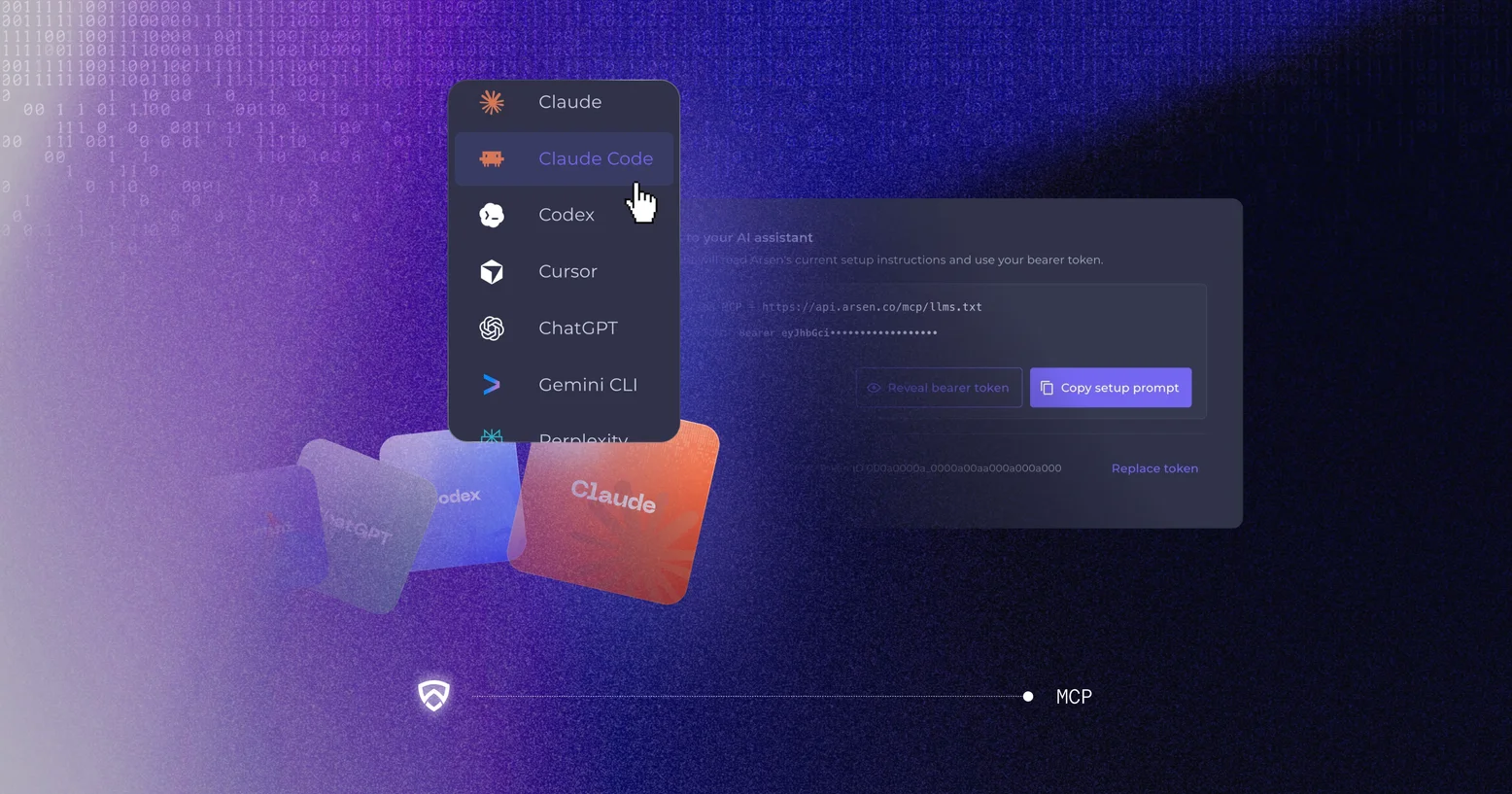
Arsen MCP connects your AI assistant to Arsen so you can read phishing simulation and awareness results in plain language, then launch campaigns or assign lessons from the same conversation. Connecting takes a few minutes, and nothing runs until you approve it.
Key takeaways
- Claude connects with one click from your Arsen account settings. Other assistants connect with the server URL and your Arsen sign-in.
- You sign in with your Arsen account, SSO and MFA included. There is no token to copy or store.
- Read requests return campaign results, phishing scores, coverage and the groups to prioritize, at group level.
- Write requests prepare campaigns and lesson assignments, and nothing launches until you approve.
- To remove access, disconnect the Arsen connector in your assistant's settings.
What does Arsen MCP do?
Arsen MCP is a Model Context Protocol (MCP) server that connects AI assistants to Arsen. MCP is an open standard that lets an assistant use tools from other software. With Arsen MCP, your assistant works on your own Arsen data, within the organizations you can access.
It does two things:
- Read: retrieve and analyze phishing simulation results, phishing scores, campaign performance, coverage and awareness training results, then turn them into summaries, reports or priorities.
- Write: act from the conversation. Your assistant prepares a phishing campaign, a follow-up or a lesson assignment, shows you what will happen, and launches it only after you approve.
You keep your usual AI assistant and ask in your own words. For a closer look at what those results mean, our guide to the human risk dashboard explains each indicator.
To see why security, IT and GRC teams bring their awareness program into their assistant, read why use Arsen MCP.
Which AI assistants can you connect to Arsen MCP?
Any assistant that supports remote MCP servers with sign-in can connect. There are three ways to do it, depending on the assistant you use.
 Claude · One-click connection from your Arsen account settings
 ChatGPT · Custom connector with the Arsen server URL
 Gemini · Custom connector with the Arsen server URL
 Microsoft Copilot · Custom connector with the Arsen server URL
 Grok · Custom connector with the Arsen server URL
 Perplexity · Custom connector with the Arsen server URLClaude Code · Setup prompt copied from your Arsen account settings
 Cursor · Setup prompt copied from your Arsen account settings
Whichever method you choose, you sign in to Arsen in your browser with your usual account, SSO and MFA included. Your assistant gets the same access you have in Arsen, checked on every request.
How do you connect Arsen MCP to Claude?
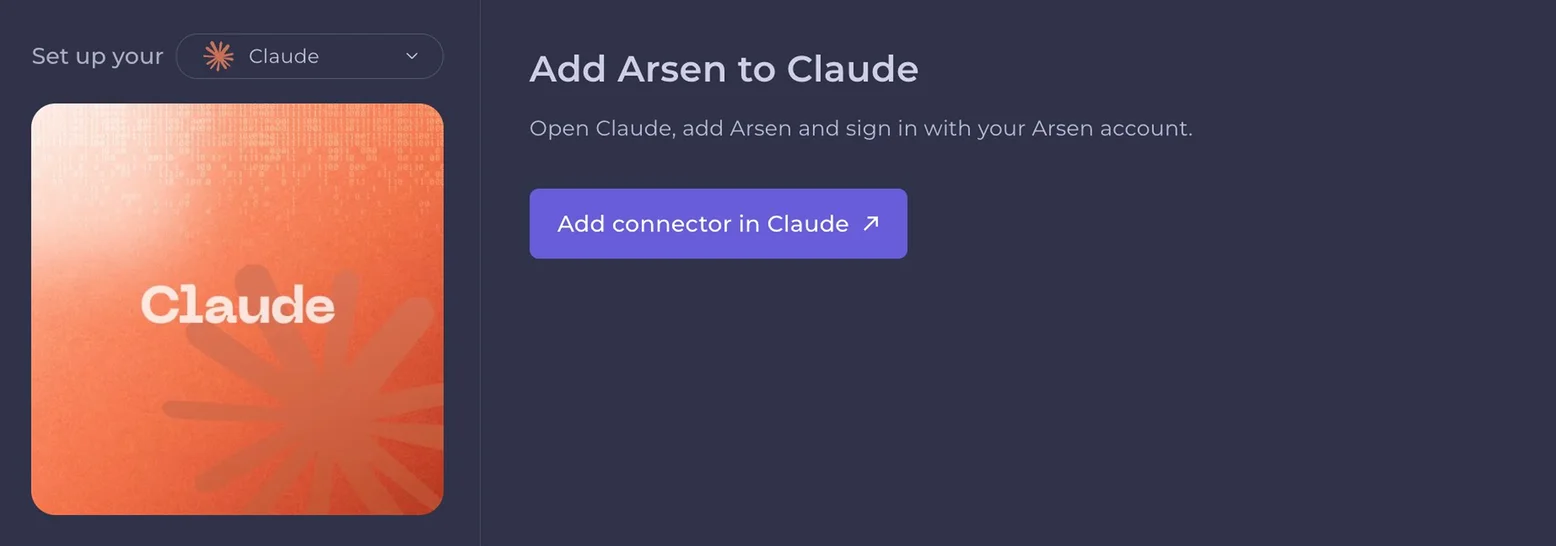
Claude connects in one click. The button in your Arsen account settings opens Claude with the Arsen connector already filled in, so you only need to sign in and approve.
How do you connect Arsen MCP to ChatGPT or another AI assistant?
In ChatGPT and other assistants, you add Arsen as a custom connector with the server URL https://api.arsen.co/mcp. The sign-in and approval steps are the same as in Claude.
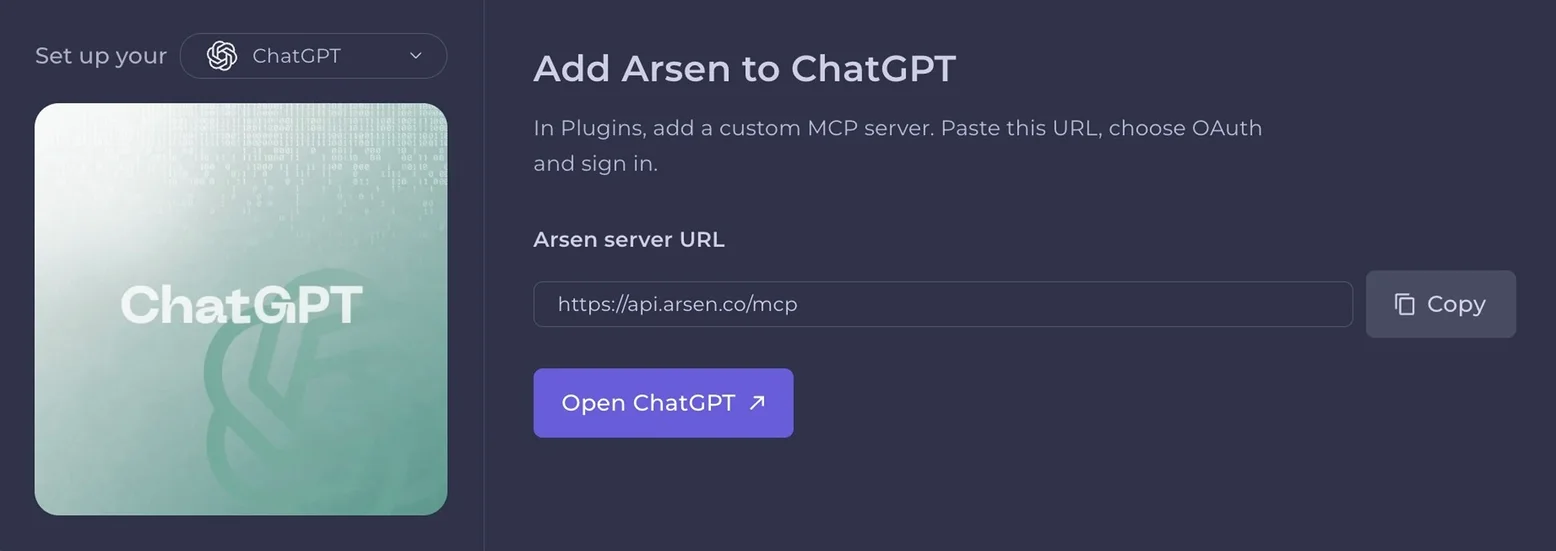
https://api.arsen.co/mcp and confirm.On team and enterprise plans, your workspace admin may need to allow custom connectors before you can add one.
How do you connect Arsen MCP to a coding agent?
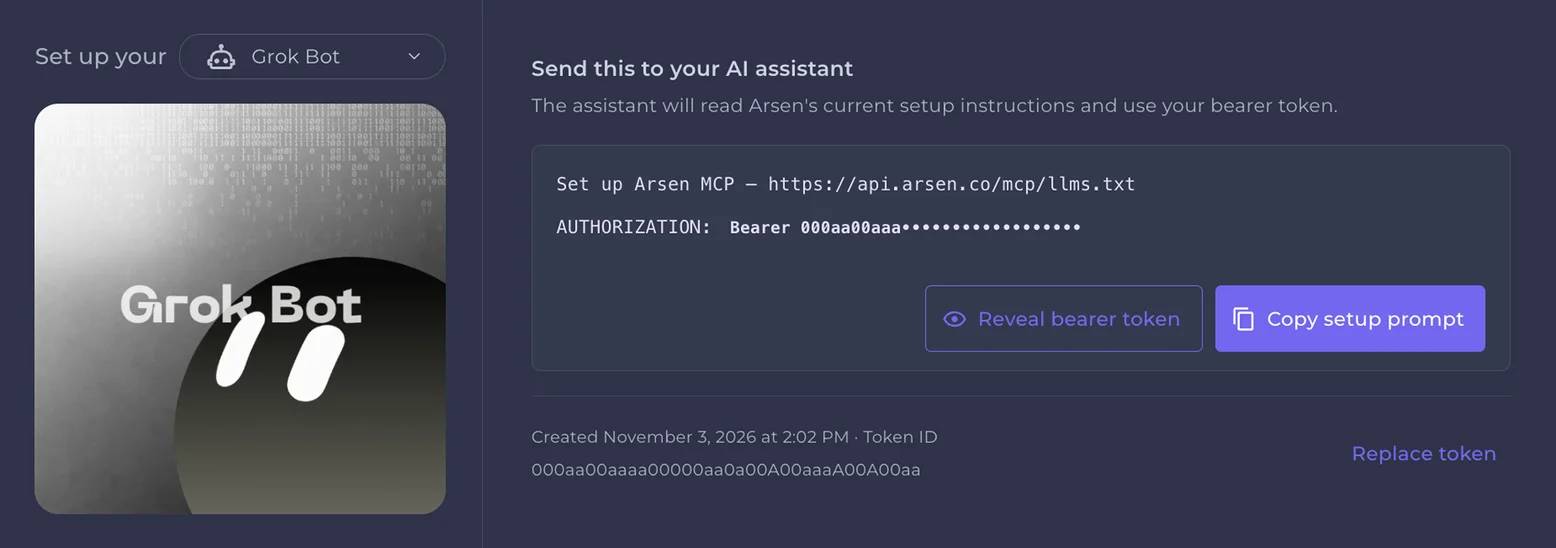
Claude Code, Cursor and other coding agents connect with a setup prompt. You copy it from your Arsen account settings and paste it into your agent, which then configures the connection for you.
What can you do with Arsen MCP once it is connected?
You can ask about your results and act on them in the same conversation. Read requests return figures and analysis from your Arsen data. Write requests prepare an action, show it to you, and run it only once you approve.
Start every prompt with "Using Arsen" so the assistant calls the connector instead of answering from general knowledge. If you manage several organizations, name the one you mean.
What can you read from Arsen MCP?
Read requests cover your phishing simulations and awareness program: campaign results, click, compromise and report rates, phishing score trends, coverage of active employees, training results and the groups to prioritize. Your assistant can turn them into a debrief, a board summary or audit evidence.
Figures stay at group level, without employee names. Email content and captured data are never returned. To interpret the rates you get back, see which results to observe during a phishing simulation.
What can you launch from Arsen MCP?
Write requests let your assistant act in Arsen: plan a phishing campaign, schedule a follow-up for the groups that struggled, spread campaigns over a quarter, or assign awareness lessons to the teams that need them. Partners can prepare the same campaign for several client organizations at once.
Every action follows the same pattern. The assistant shows the plan (groups, number of employees, scenario, difficulty, date), you approve or edit it, and only then does it launch.
Arsen MCP also works next to other security MCP servers in the same conversation. Our guide to the top cybersecurity MCP servers by team function covers the ones security teams connect most often.
Which prompts should you try first?
The prompts below are ready to use. Replace the words in brackets with your organization, period, group or campaign, then open them in ChatGPT or Claude, or copy them.
Read prompts
ISO 27001 audit evidence
Compliance and audit readiness
Using Arsen, build an ISO 27001 audit evidence report for [ORG] over [PERIOD]. Cover security awareness training and phishing simulations, highlighting trends, coverage, and gaps. Deliver a visual PDF with charts first and detailed tables in the appendix.
Organization weakness
Identify the weakest links in your organization
Using Arsen, assess [ORG]'s human security weaknesses over [PERIOD]. Identify vulnerable teams, recurring risky behaviors, and gaps in security awareness. Rank findings by risk and recommend prioritized actions. Deliver a visual PDF report.
Board summary
A one-page view of the quarter for leadership
Using Arsen, prepare a one-page board summary of our phishing simulation results for [organization] this quarter: campaigns run, click, compromise and report rates, phishing score trend, the groups to prioritize and recommended actions.
Campaign debrief
What happened in one campaign and what to change
Using Arsen, summarize the campaign "[campaign name]" in [organization]: audience, scenarios and difficulty, results, score, and what to change next time.
Results across clients
For partners managing several organizations
Using Arsen, for each client organization I manage, give the click, compromise and report rates over the last three months and flag the clients that need attention.
Write prompts
Plan and launch with approval
A targeted campaign for one group
Using Arsen, plan a phishing campaign for the [group] group in [organization] next [day], with a hard Microsoft 365 scenario. Show me the plan and wait for my approval before launching.
Follow-up campaign
Retest the groups that struggled
Using Arsen, create a follow-up campaign for the groups that performed worst in "[campaign name]", with a new scenario of the same difficulty. Show me the plan before launching.
Assign the right lessons
Target training where scores are lowest
Using Arsen, find the awareness lessons with the lowest quiz scores in [organization] this quarter and propose assigning them to the groups concerned. Wait for my approval before assigning.
Quarterly program
One campaign a month, with rising difficulty
Using Arsen, schedule one phishing campaign per month for [organization] next quarter, with difficulty increasing each month. List the three campaigns and ask for my approval first.
Same campaign for every client
For partners running one program across clients
Using Arsen, schedule our onboarding phishing campaign for all my client organizations on [date]. List what will be launched for each before I approve.
What can the assistant see, and how do you disconnect it?
The assistant sees only the organizations you can access in Arsen, and each request is checked against your current permissions. If your access changes in Arsen, the next request follows the new rights. Results stay at group level, and groups below five employees are not shown.
The answers Arsen returns pass through the assistant you use, under your agreement with its provider. For sensitive environments, use your company's approved assistant or an enterprise plan.
To remove access, disconnect or remove the Arsen connector in your AI assistant's settings: the connector settings in Claude or ChatGPT, or the MCP configuration of your coding agent (Claude Code, Codex, Cursor). Access stops for that assistant.
What if the connection does not work?
Most connection issues come from workspace settings or from a request that lacks detail. Check these points first:
- The connector option is missing: on team and enterprise plans, ask your workspace admin to allow custom connectors.
- The assistant answers without Arsen data: start the prompt with "Using Arsen" and check the Arsen connector is turned on in that conversation.
- The assistant asks which organization: name the organization, or ask it to list the organizations you can access first.
- A campaign search returns nothing: add a status, a period or a campaign name to the request.
Frequently asked questions about Arsen MCP
-
Yes. Arsen MCP works with your Arsen account and your own data. If you are not a customer yet, book a demo and the Arsen team will show it to you on your own scenarios.
-
No. The assistant prepares the campaign or lesson assignment and shows you what will happen first. Nothing runs until you approve it, and you can edit the plan before approving.
-
No. You sign in to Arsen in your browser with your usual account, SSO and MFA included. There is no token to copy or store.
-
Use the assistant your company already approves. Claude connects in one click from your Arsen settings, and ChatGPT and other assistants that support remote MCP servers connect with the server URL.
-
Yes. A partner can query every client organization they manage in one conversation, compare results and prepare the same campaign for several clients, each launch subject to approval.